Features

The whole job, in the order it actually runs

Six groups of tools on every project, one way of working across all of them. Everything on this page is in PMT1 today.

Dashboard

One screen that tells you where to look

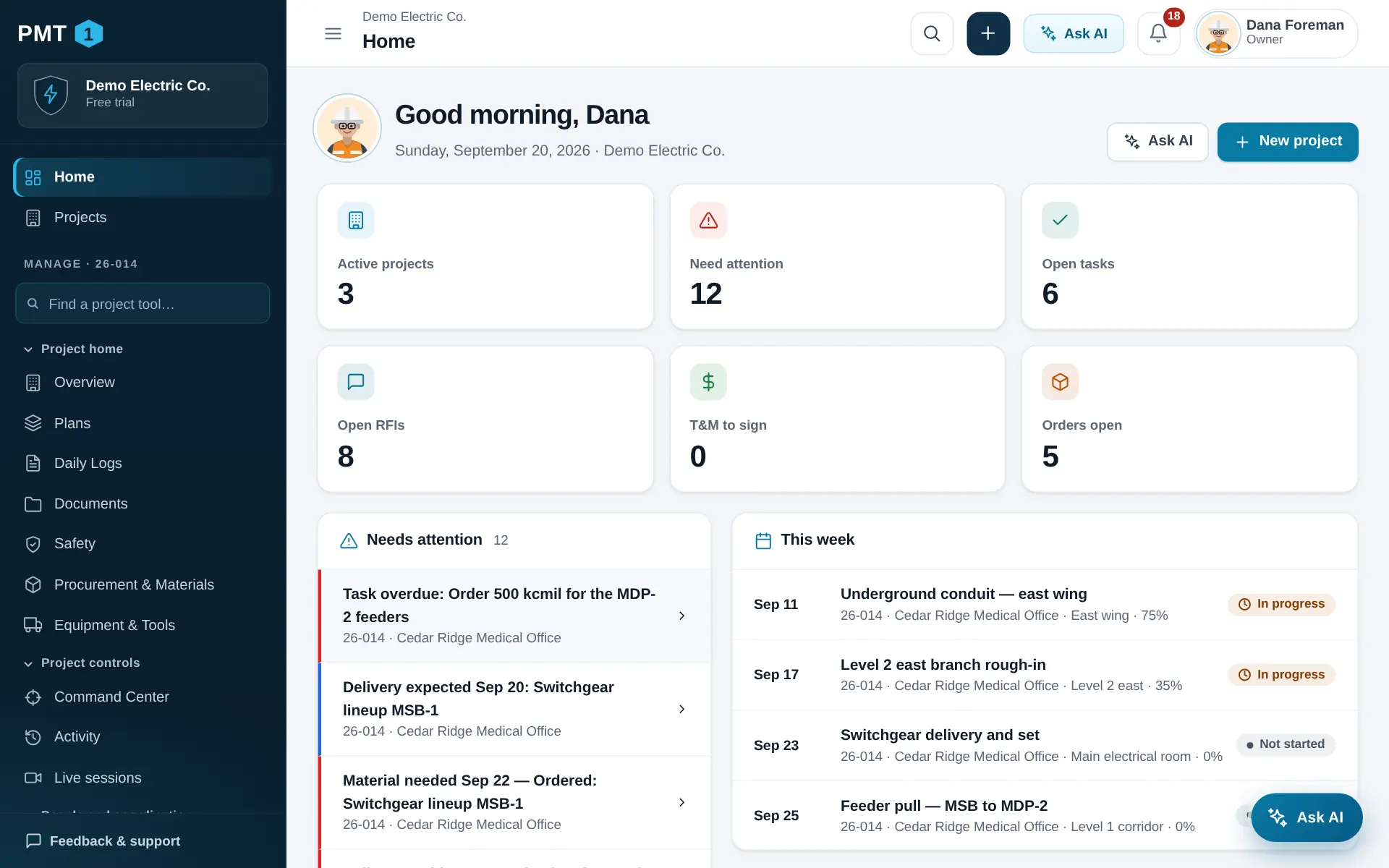
Across every project you are on: what is overdue, what is due, what is unsigned, and what is happening this week. Open a project for the same picture of just that job.

  • Overdue tasks, RFIs, deliveries, rentals and inspections
  • This week’s scheduled activities
  • Counts that link straight to the list behind them
Home dashboard with six summary tiles, a needs-attention list and this week’s activities.

Project home

Where the day starts: the drawings, the daily log, the documents, safety, and what is on order.

Plans

Current drawings on every device, with markups, measuring and revisions that the field can trust.

  • Upload PDF sets: PMT1 splits them into sheets and reads the sheet numbers, titles and scales for you to check
  • Pan, zoom and search the words on a sheet; links between sheets from detail callouts
  • Markups on private, project and shared layers — text, clouds, arrows, stamps, photos and pins that open the RFI, issue or punch item behind them
  • Measure length, area, count, angle and slope, with a scale per sheet or per detail
  • New revisions matched to the old ones, compared in overlay or side by side, with markups carried forward
  • Chosen sheets kept on a phone or tablet for places with no signal
Daily logs

One log per project per day, filled in by every foreman and combined into one signed report.

  • Weather brought in from the project address (National Weather Service, United States), manpower and hours, work performed, deliveries, equipment, visitors, delays and safety
  • Each foreman fills in their own rows; the report is signed and emailed to the people on its distribution list
  • Talk or film a walk of the job and have the assistant draft the log for you to check
  • Labor and hours by day, trade, person and cost code, straight from the logs

Documents, specifications and submittals

Controlled files with versions, a spec book split into sections, and a submittal log with review steps.

  • Folders, versions, check-out and check-in, private files, and a 90-day recycle bin
  • Upload the spec book: PMT1 finds the section breaks; pick a section on an RFI, a submittal or an inspection
  • Submittals with reviewers in order, lead times, required-on-site dates and review stamps
  • Permits with numbers, issue and expiry dates

Safety

Safety meetings with sign-in, pre-task plans with sign-off, and incidents on the record.

  • A company library of safety topics with talking points — 24 to start from
  • Safety meetings and toolbox talks with attendance and signatures
  • JHAs / pre-task plans: steps, hazards, controls, PPE and permits
  • Incidents, near misses and safety observations

Procurement and materials

From “we need it” to “it is here”: requisitions, bid requests, purchase orders, deliveries, receipts and stock.

  • Requisitions approved by a manager, then priced or ordered
  • Bid requests with the suppliers’ quotes side by side, and an award that makes the purchase order
  • Deliveries checked against the packing slip — short, damaged or wrong items flagged
  • Material on hand with what is spoken for, and a warning at the reorder point

Equipment and tools

Owned and rented gear: who has it, where it is, and when it goes back.

  • Check tools out and in, with a log of who had what
  • Rental start, due-back date and rate — with a reminder before another week bills
  • Serial numbers, condition, inspection and calibration dates

Project controls

One screen that says how the job is doing and what to do next.

Overview and Command Center

Health, progress, money, risk and the queues that need someone — critical items, approvals, overdue work, field items.

  • What changed since your last visit
  • Recommended next actions, each linked to the record behind it
  • A written project summary with every line tied to its source — written by the assistant where your plan includes it

Activity

Every create, change and delete on the project, with who and when.

People and coordination

Who is on the job, what was agreed, and what everyone needs to know this week.

Team, crew and contacts

The project team with roles and who reports to whom; the crew roster with certifications; everyone else on the job one tap away.

  • Certifications with expiry warnings
  • A manpower plan by week and classification
  • Customers, subcontractors, vendors and inspectors as contacts

Meetings

Agenda, attendees, minutes and action items that become tasks.

  • Calendar invitations by email
  • Action items tracked as tasks with owners and due dates

Correspondence

Every project has its own email address. Copy it on a message and the message — with its attachments — is filed on the project.

  • Turn an email into an RFI, an issue, a task or a note

Briefings

What the team or the field crew must know, published in revisions that never change, with “I have read this” where you need it.

Tasks

Who owes what, by when — with overdue items on everyone’s home screen.

Working with other companies

Share a project with another company on PMT1 — the plans, the RFIs, the schedule, whatever you choose — as a viewer or as a contributor who can propose items for you to accept.

  • They never see your money, your crew or your private records
  • Outside collaborators — an architect, an engineer, an owner’s rep — get a read-only view and do not use a paid seat

Plans and field work

What the field sees, asks and checks.

Models and CAD

A design library with versions. Open glTF, OBJ and STL models in 3D and PDF drawings in 2D, right in the browser.

  • Turn the model over, slice it open with a section cut, hide the parts in the way
  • Measure between two points; save viewpoints
  • Pin a comment, an issue, an RFI or a task on the model — issues, RFIs and tasks become real records with a picture of the view
  • Revit, IFC, DWG and other design files are kept with their version to download; export a .glb or a PDF from the design software to view them here

360 walkthroughs

Walk the job with a 360 camera. Look around, pin what you see, and put two dates side by side.

  • 360 photos and videos, drone shots and ordinary photos, by floor and area
  • Pins for issues, RFIs, tasks, safety observations and comments — filed as real records when you want them to be
  • Compare two visits side by side; the views turn together

Photos

Every picture on the job, by date, by place or on a map — with markups that never touch the original.

  • Progress photos, tags, locations and GPS
  • Photo reports as PDF, and a ZIP of the pictures you choose

RFIs

Numbered, dated and chased. You always know who has the ball.

  • Draft, review, open, answered, closed — with an official response marked as such
  • Cost and schedule impact, spec section and drawing reference on the RFI
  • Overdue answers rise to the top of the home screen

Inspections and punch

Checklists from your own template library, performed on a phone, signed, and scored.

  • Pass / fail / N-A, numbers, choices, photos and signatures; a failed item opens an issue with an owner
  • Recurring inspections and a calendar
  • Answers are kept on the device when the signal drops and sent when it returns
  • Punch list with owner, due date and verification

Schedule and money

When it happens, what it costs, and what changed.

Schedule

A 3-week look-ahead your foremen will actually use, a Gantt of the whole job, and the constraints that have to clear first.

  • Crews, head count and percent complete on the board
  • The project’s own working days and holidays
  • Prints on one page for the weekly meeting

Budget, cost and WIP

Budget by cost code against what is committed and spent, with a projected final cost and over- or under-billing.

  • Original budget + approved change orders = revised budget
  • Committed from subcontracts and purchase orders; spent from receipts, T&M materials and daily-log labor
  • Click any number to see the records it is made of

Changes and extra work

Change events priced and approved in order, T&M tickets signed on the spot, and issues with an owner.

  • Change events → potential change orders → change order requests → change orders
  • Pricing lines with labor, material, equipment and markup; labor brought in from the daily logs
  • Approvers in sequence, and an executed change order as a signed PDF
  • T&M tickets with labor, material and equipment lines, signed on the phone

Closeout and administration

Hand the building over, and keep the record.

Assets and handover

Equipment, as-builts, O&M manuals, warranties, training, spare parts and keys — with a readiness score.

Reports

Executive status, cost and WIP, schedule look-ahead, field productivity and handover readiness — each as a PDF to read and an Excel workbook to work with.

Project settings

Switch tools on and off per project and per role, number records your way, add your own fields and locations.

  • Keep drawings off personal devices, or allow them
  • A permanent delete that takes a password, a typed name and leaves a backup

Schedule

Plan three weeks out, every week

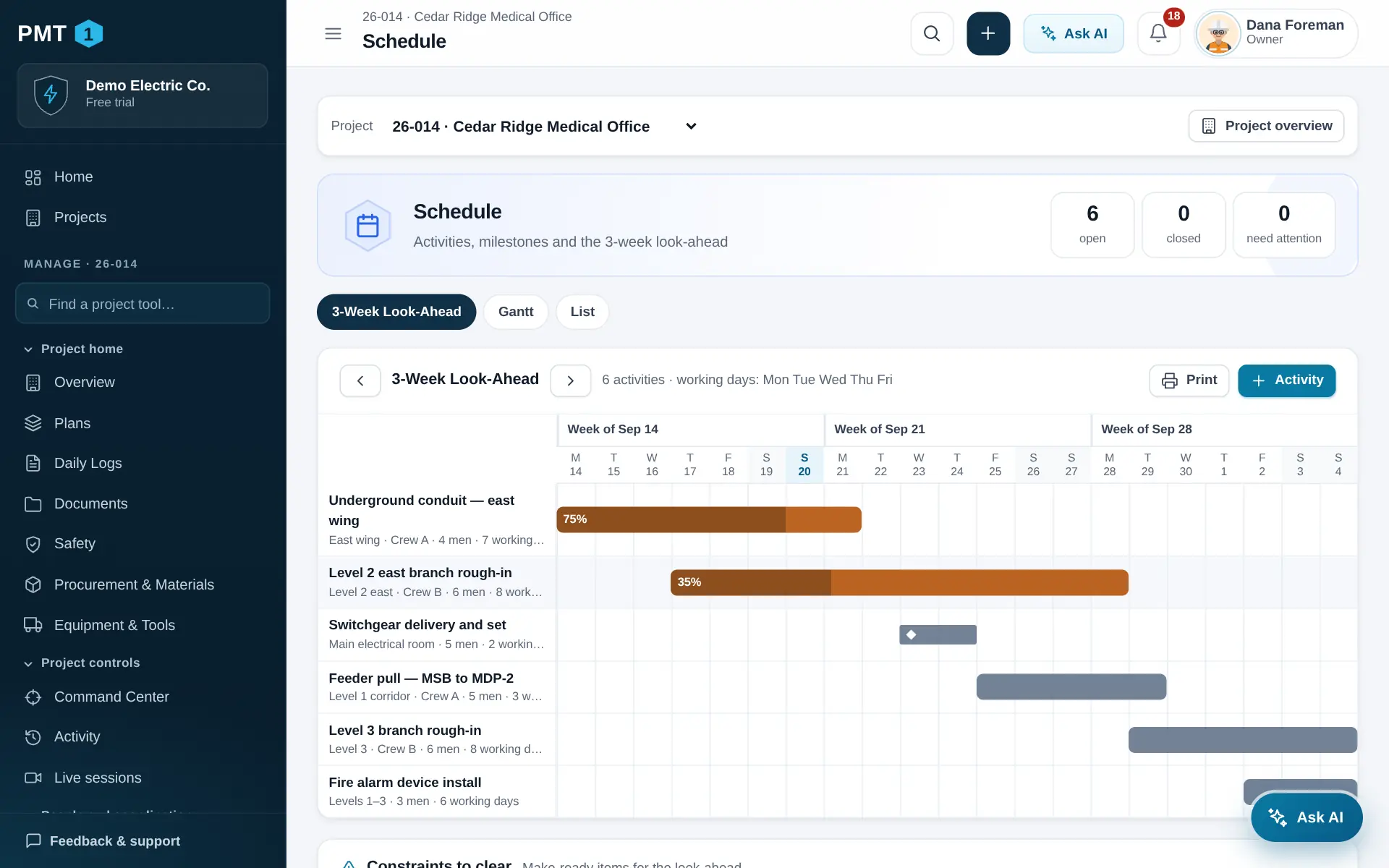
The look-ahead board is where the week gets planned: what is starting, who is on it, how many people it takes, and what has to be cleared first.

  • Look-ahead, Gantt and list views
  • Milestones marked on the board
  • Prints on one page for the coordination meeting
Three-week look-ahead board with activity bars, percent complete and constraints.

Extra work

Get the signature the day the work happens

Extra work gets written up while everyone still remembers it: who directed it, where, labor by classification, material and equipment. Hand over the phone for a signature and the ticket is locked in.

  • Labor, material and equipment lines with totals
  • Signature capture on any touch screen
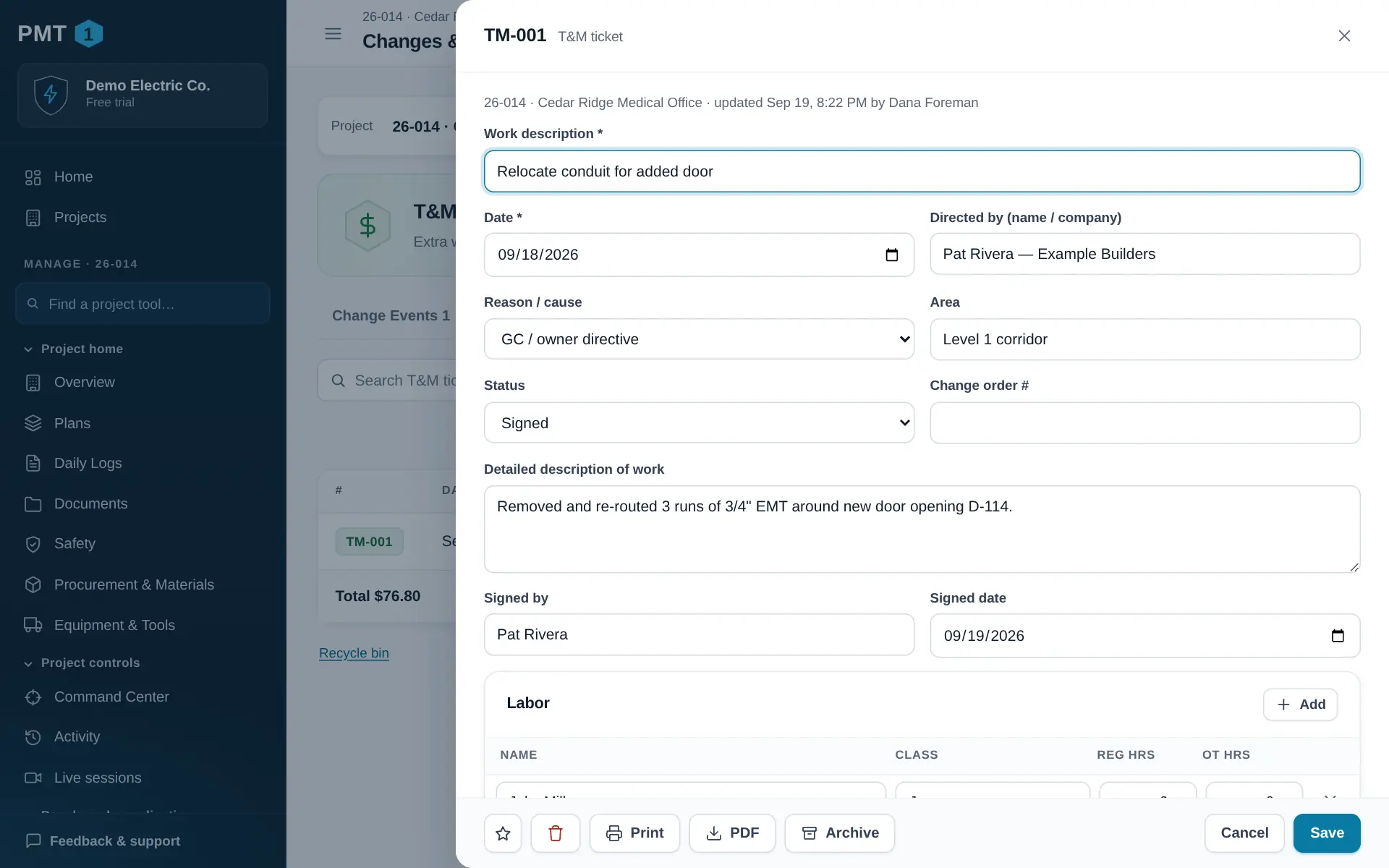
  • Pending tickets show on the dashboard until signed
T&M ticket TM-001 open in the record panel: work description, date, who directed the work, reason, area, status, a detailed description of the work, and who signed it and when.

True of every record

RFI, delivery, toolbox talk or punch item — they all behave the same.

Numbered automatically

RFI-004, TM-012, CO-003 — per project, never reused.

Photos and files attached

From the camera or the file picker, on any record.

Comments and history

Who said what, who changed what, and when.

Print or save as PDF

Clean printouts of any record and of the three-week look-ahead, carrying your logo — or the company badge you design in the app.

Export to CSV

Every list opens in Excel. Your data is never locked in.

Late means red

Due dates drive the dashboard, so nothing quietly slips.

Company and admin

Set up once. Stays out of your way.

Roles that match the job

Owner, admin, project manager, superintendent, foreman, office, viewer and outside collaborator — each with sensible permissions.

Project-level access

People see only the projects they are on. An outside collaborator gets a read-only view of the coordination side — schedule, RFIs, inspections, punch list and documents — and never sees money, crew or safety records.

Invite by email

Your people pick their own password and profile picture — a photo or one from the gallery. Nobody shares a login.

Two-step sign-in

Works with any authenticator app. Reset your password and every device is signed out.

Activity log

Every create, change and delete — including anything the assistant did — with who and when.

Billing you control

Change plans, update your card, download invoices or cancel online, any time.

AI assistant

And an assistant that can do all of it for you

Anything you can do in a record, you can ask the assistant to do — by typing, talking or sending a photo.

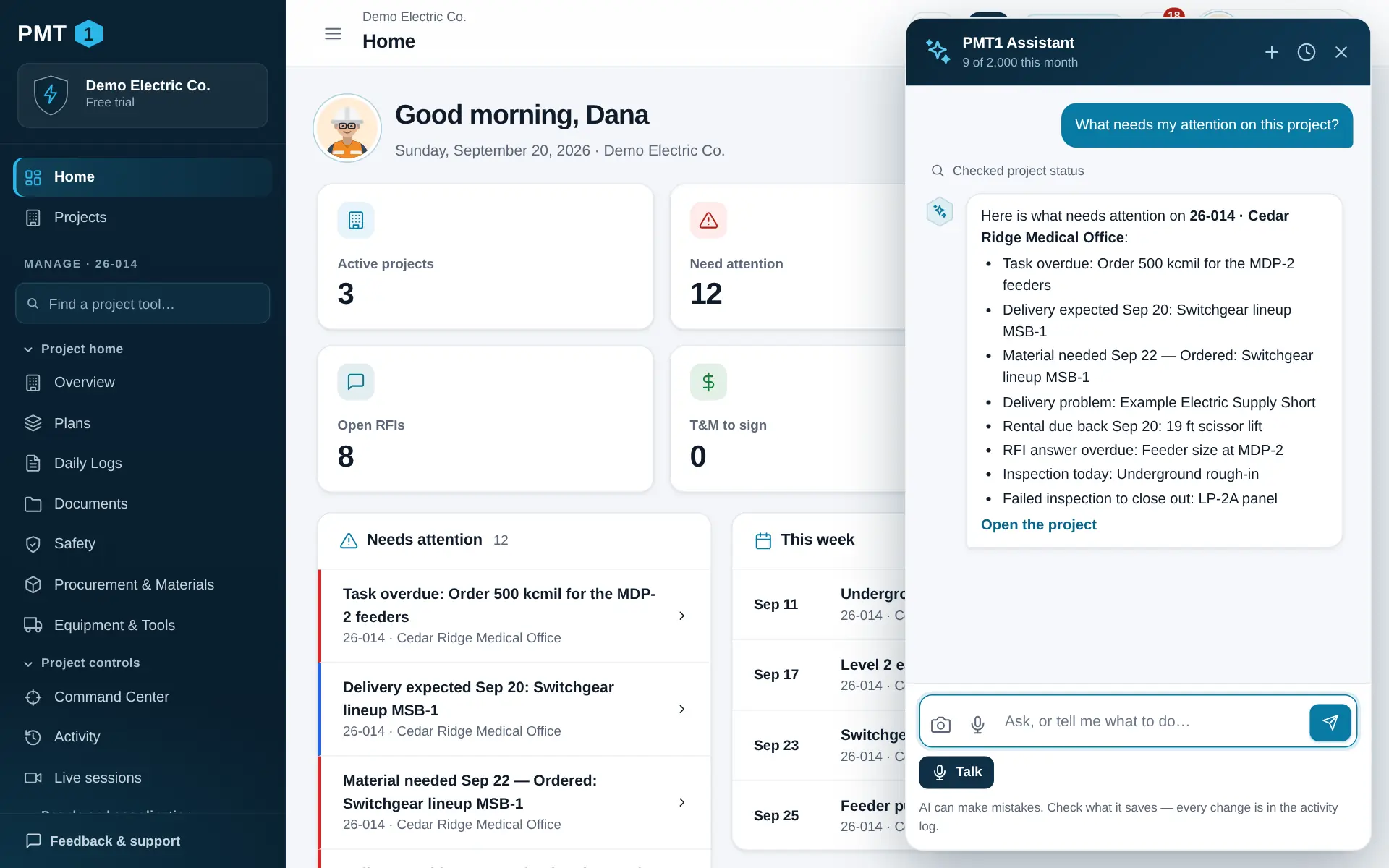
Meet the assistant

The PMT1 assistant answering a question about what needs attention on a project.

On the way

What comes next

Not in the product yet. It will be included in every plan when it ships.

Planned

Native iPhone, iPad and Android apps

Planned. Today PMT1 runs in the browser on any phone, tablet or computer — nothing to install, and you can add it to your phone’s home screen like an app.

Put your next project on PMT1

Set up your company in a few minutes. Bring your team in when you are ready.

Start your 14-day free trialTalk to us